

Because I only allocated 100G to the C drive when partitioning my computer, and added BitLocker encryption on top of that, I now don’t have enough space, and I can’t expand it either (because of BitLocker). So I have to move installed software out, but WSA is a space hog, and Microsoft, as always, doesn’t provide a migration method, so I had to solve it myself. This method also applies to users who need to back up WSA or WSL.
WSA Migration Method
In File Explorer, open %LocalAppData%\Packages\MicrosoftCorporationII.WindowsSubsystemForAndroid_8wekyb3d8bbwe\LocalCache.
The userdata.vhdx file is WSA’s virtual hard disk; the installed apps are all stored in this file.
Copy it to another location with fastcopy, then delete the original VHDX file.
Here I’ll use copying to Z:\WSA_VHDX as an example.

Then open a cmd with administrator privileges and create a link. Note: it must be cmd; PowerShell doesn’t have the mklink command
mklink userdata.vhdx Z:\WSA_VHDX\userdata.vhdx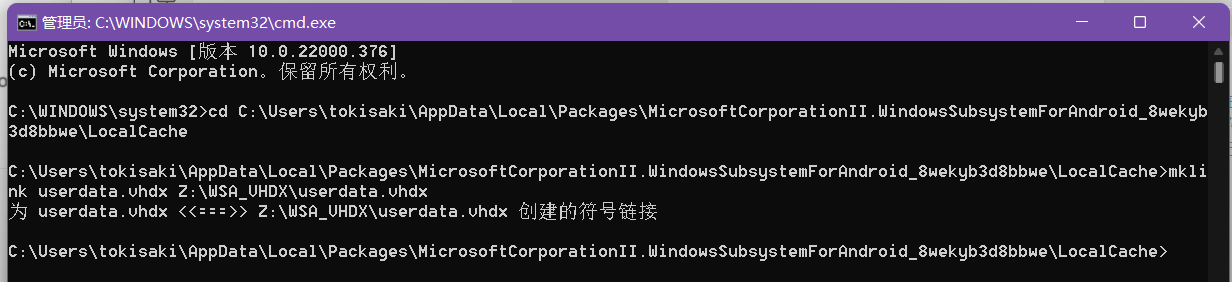
WSL Migration Method
Basically the same as the WSA migration method, except the VHDX path is different.
Different Linux distributions store the VHDX in different paths. Using Ubuntu 20.04 LTS as an example, its VHDX is stored in ext4.vhdx under %LocalAppData%\Packages\CanonicalGroupLimited.Ubuntu20.04onWindows_79rhkp1fndgsc\LocalState. Just migrate it to another location.
Notes
Before migrating, you need to close the corresponding software, otherwise it will complain that the file is open and can’t be deleted.
How to Close WSA
After installing WSA, there’s an app with a green icon called Windows Subsystem for Android, which has a switch to shut down WSA.
How to Close WSL
Enter PowerShell or cmd and run wsl --shutdown